Print Any Price Label. Any Time. From Any Device.
Choose your printer
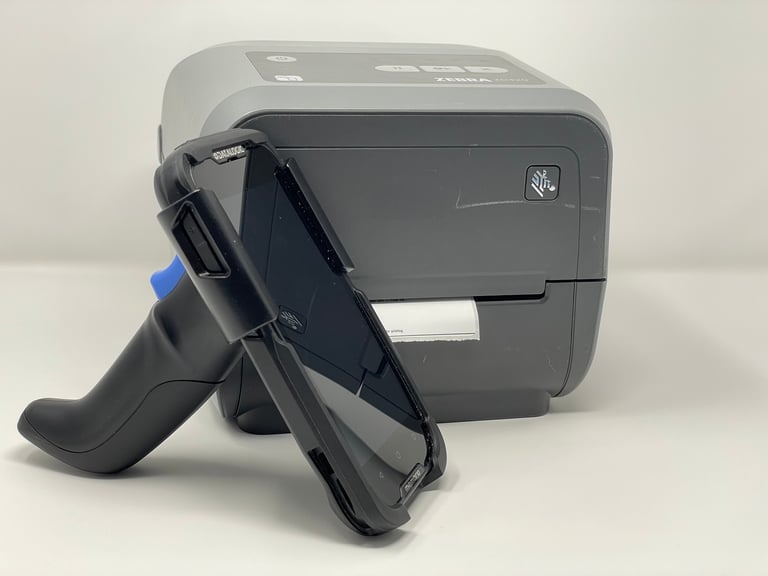
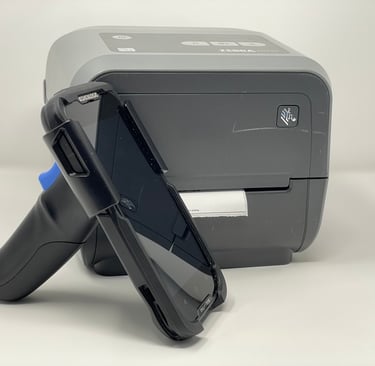
Choose your printer. Zebra label printers are one of the popular options out there. At the moment our application is compatible with only Zebra printers.
Create Label Profile
Within Price Snap, select Label Profile to open up your options. From here you can create a new label profile, manage existing label profiles or delete label profiles. The label profile viewer is prepopulated with text so you can visualize our label layout. You can switch modes to preview the label before finalizing the label layout. If needed you can add custom text and refresh the view to see what it would look like.
Load your Price Book
Log into you back office system, such as S2k Prime, and export a copy of your price book to a CSV file. Add your file to a folder in your Google Drive account. Click on Price Book then Load New Price Book. Here you will be able to load your CSV file.
Your CSV file should have a column for Product Name, Price, and UPC number. The application will help you map the columns to extract the correct information for each field.
Everything Your Team Needs to Print Labels Faster
Scan, Search, Print
Use the built-in barcode scanner on your handheld device to look up any item instantly. Select your label profile, confirm the price, and send it to your label printer — all in under 10 seconds.
Printing Professional Labels Every Time
Printing labels works best with a network attached printer. As long as your printer is connected via Wi-Fi or hard wired to your network it should work! Make sure your handheld device is also on the same network. With printing you have option to print to the exact size of your label or print to a standard sized letter paper. When printing to your exact label size please make sure your label printer is loaded with the same exact size needed for the label.
Choose your label paper size
Find the right label paper size for your shelf labels. When choosing a label size consider any label holders you use or the shelf track size.
The Price Snap app puts your entire price book in your pocket. Walk the floor, scan a barcode, and print a professional shelf label — all without leaving the aisle or going back to a computer.
Expand the capabilities of your back-office software
Are you an Arco Marathon Site running S2K Prime as your back-office system looking for a way to print price labels for your items?
Are you already using a Datalogic Handheld Scanner or similar device?
Please keep reading and we hope you find this useful!
Printing Price Labels Made Easy


Get Up and Running in 4 Simple Steps
Export your price book
Log into your back-office POS system, such as S2k Prime, and export your price book as a CSV file. Upload the file to a Google Drive folder.
01
02
Create your label profile
Choose your label paper size, customize the layout, add custom text, and preview your label before saving. Build as many label profiles as you need.
03
Connect your label printer
Connect your Zebra label printer to your Wi-Fi network. Make sure your handheld device is on the same network. That's it — no drivers or cables needed.
04
Scan and print
Scan any product barcode on the sales floor. The app pulls the item's name and price from your price book. Select your label profile and tap Print. Done.
Video Demonstrations of Price Snap
Video 1 — App Overview: How Price Snap Works Watch a full walkthrough of the app — from loading your price book to printing your first shelf label.
Video 2 — Demo: Scan a Barcode and Print a Label with a Zebra ZD420 See exactly how to scan a product barcode, preview the label, and print it to a Zebra ZD420 label printer over Wi-Fi.
Video 3 — How to Add a Zebra Printer to the Price Snap App See exactly how to add a Zebra Printer in order to print barcode labels. Make sure your printer and device are on the same network.


Video 4 — How to Add a Zebra Printer to the Price Snap App In this tutorial we show you how to export your price book from S2K Prime, copy the file to a Google Drive folder, and load it into the Price Snap app so you can start printing shelf price labels right away.
Price Snap works with any CSV file that has a column for item name, retail price and UPC barcode. No special formatting required — the app maps your columns automatically.

Frequently Asked Questions
What is Price Snap?
Price Snap is an Android app that lets convenience store owners and retail businesses print professional shelf price labels directly from their price book CSV file. Transfer the file to you device and begin printing from Wi-Fi attached printers such as Zebra label printers or home office printers.
What back-office systems does Price Snap work with?
Price Snap works with any back-office system that can export a CSV file — including S2K Prime, Series2K, Square, Verifone, and others. If your system exports a price book as a CSV file with columns for item name, price, and UPC, Price Snap will work for you.
What printers does Price Snap support?
Price Snap is currently compatible with Zebra label printers connected over Wi-Fi. Home and small business office printers, such as HP, Brother and Canon, are also compatible for letter sized large format labels.
Do I need to reformat my price book to use Price Snap?
No. Price Snap maps your columns automatically. As long as your CSV file has a column for item name, retail price, and UPC barcode, the app will work without any reformatting.
How much does Price Snap cost?
Price Snap is available on the Google Play Store for $10 per month or $80 per year. The annual plan includes a 30-day free trial and the monthly plan includes a 14-day free trial.
Is Price Snap available for iPhone?
Price Snap is currently available for Android devices only. It is available for download on the Google Play Store.
Who makes Price Snap?
Price Snap is developed by Gavid Development LLC, a CEDIAP® certified company specializing in convenience store back-office automation and shelf label printing solutions.
Which label is Price Snap compatible with?
Price Snap is compatible with standard letter paper, direct thermal or thermal transfer labels from Avery, OnlineLabels.com, Betckey.com, and many other label providers. Please check the label compatibility with your printer before making your purchase.
What is the purpose of Price Snap?
The purpose of Price Snap is to help businesses of all sizes save time printing price labels for their store. Printing labels is not always convenient or customizable. Our purpose is to make that possible for your business and your customers. If you would like to request a feature please contact us.
Does Price Snap print labels in bulk quantities or can I print one label for several different items?
You can easily print one label for for several different items or print multiple labels for the same item if needed. Quickly and easily scan each item you need a label for and print it based on the label design you created in the application.
Which areas do we service?
West: Alaska, California, Colorado, Hawaii, Idaho, Montana, Nevada, Oregon, Utah, Washington, Wyoming
South West: Arizona, New Mexico, Oklahoma, Texas
South East: Alabama, Arkansas, Delaware, Florida, Georgia, Kentucky, Louisiana, Maryland, Mississippi, North Carolina, South Carolina, Tennessee, Virginia, West Virginia
Midwest: Illinois, Indiana, Iowa, Kansas, Michigan, Minnesota, Missouri, Nebraska, North Dakota, Ohio, South Dakota, Wisconsin
North East: Connecticut, Maine, Massachusetts, New Hampshire, New Jersey, New York, Pennsylvania, Rhode Island, Vermont
Price Snap is a product of Gavid Development LLC
951-365-5668
Contact Us Privacy Policy
Email Us Refund Policy